How to Set Up a TV Listening System: Step-by-Step Guide
Setting up a TV listening system takes less time than most people expect. This guide walks you through every step, from checking your TV's audio ports to adjusting volume for clear speech, so you can hear your shows clearly at your own level.
- Before you start: what you need
- Step 1: Find your TV's audio output
- Step 2: Connect the TV Streamer
- Step 3: Set your TV audio output correctly
- Step 4: Power on and pair the Maxi Pro
- Step 5: Adjust volume and tone for clear speech
- Using the system in a shared room
- Troubleshooting common setup issues
- Setup tips if you wear hearing aids
- Your next steps
To set up the Maxi Pro TV Listening System: connect the TV Streamer to your television's audio output (optical, RCA, or 3.5 mm), set your TV's digital audio output to PCM, power on the Maxi Pro amplifier, confirm the devices are paired, and adjust the volume and tone to your preference. The whole process takes about 10 minutes. Once set up, you hear TV audio clearly through your headset at your own volume. The TV speakers continue to play at any level for others in the room.
About 15 percent of American adults have some degree of hearing difficulty, according to the National Institute on Deafness and Other Communication Disorders (NIDCD). For many of them, hearing TV dialogue clearly requires a volume level that is uncomfortable for everyone else in the room.
A wireless TV listening system solves this. It sends TV audio directly to your ears. You control your own volume. Everyone else in the room listens at whatever level works for them. No cables run from the TV to your chair. No one has to compromise.
This guide focuses on setting up the Maxi Pro TV Listening System, which includes the Maxi Pro amplifier, the Maxi Pro TV Streamer, headphones, and earbuds. The steps below apply to most modern US televisions.
Before You Start: What You Need
Check that you have the following items on hand before beginning.
- Maxi Pro amplifier (receiver)
- Maxi Pro TV Streamer (transmitter)
- Optical (Toslink) cable
- Audio cable with RCA extensions
- Stereo headphones with mic
- Earbuds with mic
- Rechargeable batteries (installed)
- Power supply for the TV Streamer
You will also need your TV remote. You will use it to change the audio output settings in Step 3.
The Maxi Pro TV Streamer works with most televisions from 2015 onward. It connects via optical (Toslink), RCA analog, or 3.5 mm audio output. Most modern TVs have at least one of these ports. If your TV only has HDMI ARC and no separate audio output, you may need an HDMI audio extractor to create a compatible connection. Check the ports on the back or side of your TV before starting.
Step 1: Find Your TV's Audio Output
Look at the back or side panel of your television. You are looking for one of these ports.
If your TV has an optical port, use it. Optical gives the most stable signal and the least risk of audio delay. If there is no optical port, use RCA or the 3.5 mm headphone jack.
Take note of which port is available before moving on. This decides which cable you will use in the next step.
Step 2: Connect the TV Streamer to Your TV

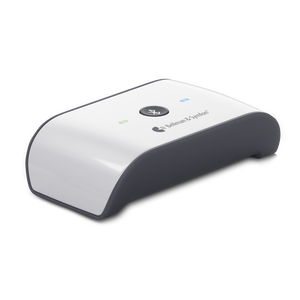
The Maxi Pro TV Streamer is the transmitter. It plugs into your TV and sends the audio signal wirelessly to the Maxi Pro amplifier. The Streamer uses Qualcomm aptX low-latency Bluetooth technology, which keeps sound in sync with the picture.
- Match the cable to your TV's available port Use the optical cable if your TV has an optical output. Use the RCA cable for analog audio out. Use a 3.5 mm cable if only the headphone jack is available. All three cable types connect to the TV Streamer's input ports.
- Connect one end of the cable to your TV's audio output port For optical, insert the Toslink plug firmly until it clicks. For RCA, match colors: red to red, white to white. For 3.5 mm, push the jack fully into the headphone socket.
- Connect the other end of the cable to the TV Streamer The Streamer has labeled input ports on the back. Match the cable to the correct port: optical, RCA, or audio in.
- Plug the TV Streamer into power Use the included power supply. Connect it to the Streamer's power port and plug into a wall outlet. A power indicator light will turn on.
Place the TV Streamer near your television. It does not need to be visible to you from your seat. It communicates wirelessly with the Maxi Pro amplifier from up to 80 feet away in open space.
Step 3: Set Your TV Audio Output Correctly
This step is often skipped. It is the most common reason people have trouble getting audio to work. You need to change one setting in your TV's menu.
- Open your TV's audio or sound settings Use your TV remote. Go to Settings, then Sound or Audio. The exact path varies by TV brand, but the options are similar across most models.
- Find the audio output or digital output setting Look for a setting called "Audio Out," "External Speakers," "Digital Audio Output," or "Sound Output."
- Enable audio output to external devices If the setting is set to "TV Speakers Only," change it to allow external output. Some TVs use a toggle to switch between TV speakers and an audio output port.
- Set digital audio output format to PCM This is important if you are using the optical cable. Find the digital output format setting and set it to PCM (not Dolby Digital or Auto). Dolby Digital can cause audio errors or no sound at all with the TV Streamer. PCM is the correct format for this connection.
Many televisions default to "Dolby Digital" or "Auto" for digital audio output. These formats are designed for home theater receivers, not personal listening systems. Setting digital output to PCM sends a clean, uncompressed stereo signal that the TV Streamer processes correctly. Skipping this step is the most common cause of no sound or audio distortion after setup.
Step 4: Power On and Pair the Maxi Pro Amplifier
The Maxi Pro amplifier is the device you hold or wear. It receives the audio from the TV Streamer and delivers it to your headphones or earbuds.
- Power on the Maxi Pro amplifier Press and hold the On/Off button until the indicator light comes on. The battery is rechargeable and comes pre-installed. A full charge lasts up to 70 hours.
- Connect your headphones or earbuds Plug the included headphones or earbuds into the 3.5 mm headphone jack on the amplifier. Start with the volume set low before putting them on.
- Check for pre-existing pairing Most Maxi Pro TV systems are pre-paired at the factory. The amplifier and TV Streamer are set to connect automatically when both are powered on. Look for the Bluetooth indicator light on the Streamer. A steady light means it is connected. A blinking light means it is searching.
- Manually pair if needed If the devices do not connect automatically, press and hold the pair button on the TV Streamer. Then activate pairing mode on the Maxi Pro amplifier. Wait for the indicator light on the Streamer to stop blinking. This confirms a successful connection.
Step 5: Adjust Volume and Tone for Clear Speech
With everything connected, play something on your TV. You should hear audio through your headphones. Now adjust the sound to suit your hearing needs.
- Set the TV volume to a comfortable room level This is the level everyone else in the room will hear. It can be lower than what you need. The Maxi Pro gives you independent control from this point.
- Raise volume on the Maxi Pro amplifier Use the volume controls on the amplifier. Raise it gradually until dialogue is comfortable and clear. The Maxi Pro outputs up to 135 dB SPL, giving a wide range of amplification options.
- Adjust the tone control for speech clarity The Maxi Pro has a tone control that boosts high frequencies. Speech clarity often improves with a slight high-frequency boost. Adjust until voices sound natural and clear.
- Switch microphone selector if needed The Maxi Pro has an omnidirectional microphone for picking up nearby conversation. When watching TV, you may prefer to disable the mic or switch the selector to TV mode so ambient sounds do not mix with the TV audio.
The goal is not just louder. It is cleaner, clearer speech that you control independently of everyone else in the room.
Bellman & SymfonUsing the System in a Shared Room
The Maxi Pro TV system is designed to work in shared living spaces. Here are the most common setups.
One person uses the Maxi Pro, others use TV speakers
Keep the TV speakers active at a lower level. You control your own volume through the Maxi Pro. Both audio paths play simultaneously. There is no interruption to normal TV playback for anyone else in the room.
Late-night or quiet-house watching
Mute the TV speakers entirely. Use the Maxi Pro for all audio. This lets you watch at any hour without disturbing others in the home.
Two viewers with different volume needs
A second Maxi Pro amplifier can pair with the same TV Streamer. Each person controls their own volume independently. This is the most effective solution for couples or households where two people have different hearing needs. See the full guide on TV listening for couples with different hearing needs for more detail.
For more on why watching together with different hearing needs can be challenging, see: Watch TV Loud Without Disturbing Others: Best Solutions.
Troubleshooting Common Setup Issues
Most setup problems come from TV settings, not from the Maxi Pro system itself. Here are the most common issues and how to fix them.
Leaving the TV's digital audio output set to "Dolby Digital" or "Auto" is the single most common reason the Maxi Pro TV Streamer does not produce sound after initial setup. Go to your TV's sound settings and set the digital audio output to PCM. This takes less than one minute and resolves the issue in most cases.
Setup Tips If You Wear Hearing Aids
The Maxi Pro TV system works with hearing aids in two ways, depending on whether your hearing aids have a Telecoil (T-coil) function.
If your hearing aids have a Telecoil (T-coil)
Use the Bellman Neck Loop instead of headphones. Connect the neck loop to the Maxi Pro's 3.5 mm output. Wear it around your neck and switch your hearing aids to the T-coil position. The TV audio transmits directly to your hearing aids. This avoids any discomfort from wearing headphones over the hearing aids.
If your hearing aids do not have Telecoil
Use the included earbuds placed near the microphone of each hearing aid. Some users find this works well. Others prefer to remove hearing aids and use the included headphones directly. Try both and use whatever gives the clearest, most comfortable result.
For a complete guide to this topic, read: Do Wireless TV Headphones Work with Hearing Aids?
Your Next Steps
Setup takes about 10 minutes. Once done, the system connects automatically every time you power both units on. There is nothing to adjust each session unless you want to change volume or tone.
The Maxi Pro TV Listening System works with virtually every modern television. It gives you full, independent volume control without affecting anyone else in the room. If you still miss dialogue after setup, check the tone control first. A small boost in the high-frequency range makes a noticeable difference for speech clarity.
For a broader look at why TV dialogue can be hard to follow even at high volume, read: Why Can't I Hear the TV Clearly? Causes & Fixes for Hearing Loss.
10 steps to clear, private TV audio
Work through these in order for the fastest setup.
- Identify the audio output port on your TV
- Choose the right cable (optical, RCA, or 3.5 mm)
- Connect the TV Streamer to the TV and to power
- Open TV audio settings on your remote
- Enable external audio output in TV settings
- Set digital audio output to PCM (not Dolby Digital)
- Power on the Maxi Pro amplifier
- Connect headphones or earbuds to the amplifier
- Confirm pairing: steady light on the Streamer
- Adjust volume and tone until speech is clear
Ready to set up your system?
Explore the Maxi Pro TV Listening System and the TV Streamer. Both include everything you need to get started. Free shipping and a two-year warranty on every order.
Sources: National Institute on Deafness and Other Communication Disorders (NIDCD) — Age-Related Hearing Loss: https://www.nidcd.nih.gov/health/age-related-hearing-loss · NIDCD — Quick Statistics About Hearing: https://www.nidcd.nih.gov/health/statistics/quick-statistics-hearing · Bellman & Symfon — Maxi Pro TV Listening System Product Page and Specifications: https://us.bellman.com/products/maxi-pro-tv-system · Bellman & Symfon — TV Streamer Product Page and Specifications: https://us.bellman.com/products/tv-streamer · Bellman & Symfon — Maxi Pro TV Listening System Setup Guide: https://us.bellman.com/blogs/news/how-to-set-up-maxi-pro-as-your-personal-tv-listening-system-step-by-step
This article is for informational purposes only and does not constitute medical advice. Consult a licensed audiologist or healthcare provider for a personalized hearing evaluation and treatment recommendations.
More in This Series
Best TV listening systems & wireless headphones for hard of hearing (2026)
The complete guide to TV listening solutions for people with hearing loss in 2026.
Why can't I hear the TV clearly? Causes & fixes for hearing loss
The common reasons TV speech sounds unclear and what you can do about it at home.
TV streamer vs wireless headphones: connect to any TV
Understand which connection method works for your television and listening setup.
Wireless TV headphones for seniors: complete buyer's guide
What to look for in wireless TV headphones for older adults and people with hearing difficulties.
Do wireless TV headphones work with hearing aids?
A clear guide to pairing wireless TV audio systems with hearing aids and assistive devices.
Best TV listening for couples with different hearing needs
How to set up TV audio so two people with different hearing needs can watch comfortably together.
How to hear TV dialogue over background music & sound effects
Practical solutions for following speech clearly when TV soundtracks compete with dialogue.
TV Ears vs Bellman Maxi Pro TV: which is better?
A direct comparison of two popular TV listening systems for people with hearing loss.
Set Up Clearer, Personal TV Sound
A TV listening system is easiest to use when the connection type, headphone or listening accessory, and TV audio settings are chosen together. Once connected, it lets the listener adjust sound to their needs without changing the experience for everyone else in the room.
Start with the Maxi Pro TV Listening System; add a Neck Loop when telecoil-compatible hearing aids are part of the setup.